Skip to content
System overview

Overview of the admin system

A clear map of the modules, workflows and screens that keep an online store organised.

  • Unified workspace
  • 15 connected modules
  • Daily operations
How work moves through the admin
  1. 01. DashboardDaily numbers
  2. 02. ProductsCatalog & media
  3. 03. OrdersCheckout to delivery
  4. 04. CustomersProfiles & history
  5. 05. SettingsShipping, tax, store
At a glance

Four areas, one workspace

Everything in the admin falls into one of these four areas.

DashboardDaily view

See performance and activity

Revenue, orders, average order value and cancellations for the range you pick, plus CSV exports.

CatalogProducts

Manage products, media and brands

Variants, attributes, categories, brands, collections and one shared media library.

SalesToday

Follow orders, customers and requests

Order statuses, customer profiles, reviews and website messages in one place.

SettingsJordan

Control shipping, tax and promotions

Workflow

The daily loop

Five steps most store teams repeat every day. Each one has its own place in the admin.

  1. 01

    Monitor the dashboard

    Check overnight orders, revenue and anything that needs attention.

    Morning
  2. 02

    Update products and content

    Adjust stock and prices, upload photos, publish an article.

    As needed
  3. 03

    Process orders and customers

    Move orders through their statuses and answer customer messages.

    All day
  4. 04

    Adjust settings and promotions

    Tune shipping zones, tax rules and coupons when something changes.

    Weekly
  5. 05

    Review performance again

    Compare date ranges to see what changed, and export the numbers.

    Evening
Module groups

Every module, in its place

Modules are grouped by the job they do, and they all share the same products, orders and customers.

01. Insight

Numbers that tell you how the store is doing.

  • Analytics
02. Catalog

Everything you sell and how it is organised.

  • Products & variants
  • Categories & brands
  • Reviews
  • Media & gallery
03. Sales operations

The orders and the people behind them.

  • Orders & invoices
  • Customers
04. Growth tools

Tools that bring customers back.

  • Coupons
  • Gift cards
  • Blog
05. Store setup

Rules the whole store follows.

  • Shipping zones
  • Taxes
  • Currencies & languages
  • Site & email settings
06. Incoming work

Messages that arrive from the website.

  • Website requests
Real screens

What the work looks like

Three everyday screens, and what your team can do on each one.
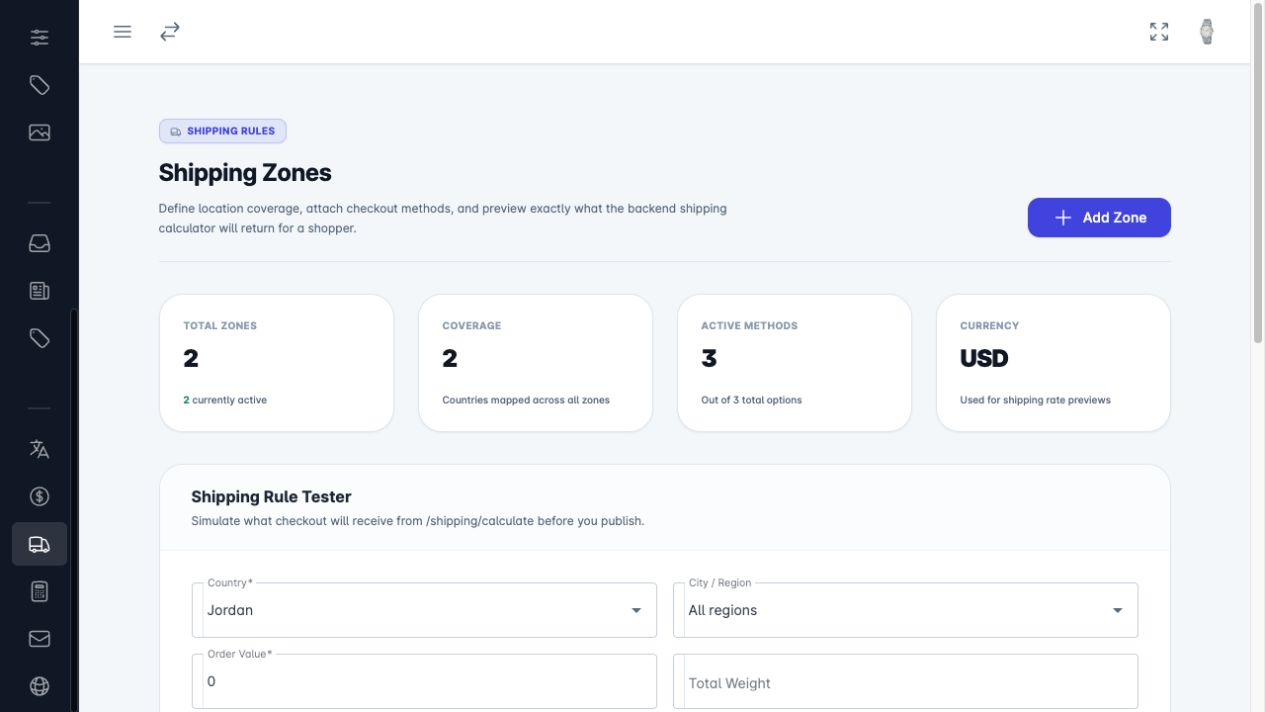
Shipping zones page in the TruBuy admin
Store setup

Shipping zones

Decide where you deliver and how much it costs, then test the result before customers see it.

What you can do here
  • Flat, weight-based, price-based or free shipping methods
  • Conditions by order value or weight, with delivery estimates
  • Simulate what checkout will charge before you publish
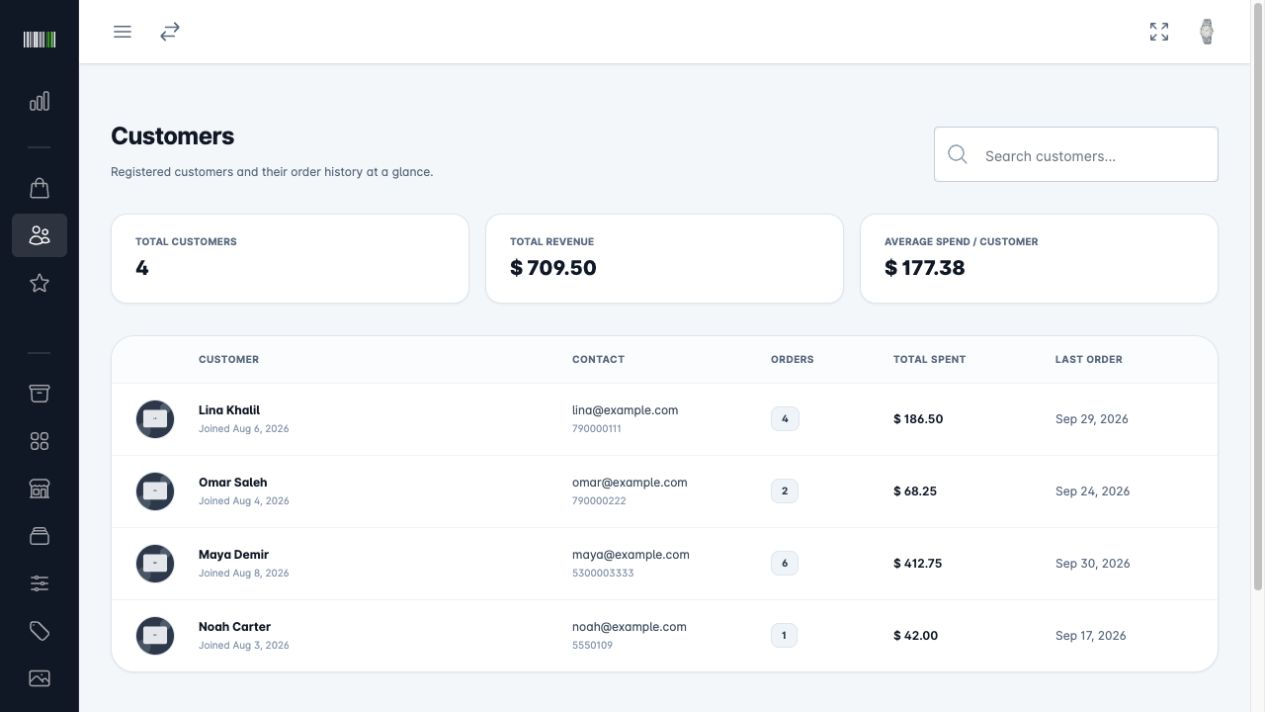
Customers page in the TruBuy admin
Sales operations

Customers

See who buys from you, how much they have spent and where their orders go.

What you can do here
  • Customer profiles with contact details
  • Total spent and order history per customer
  • Saved addresses and wishlists
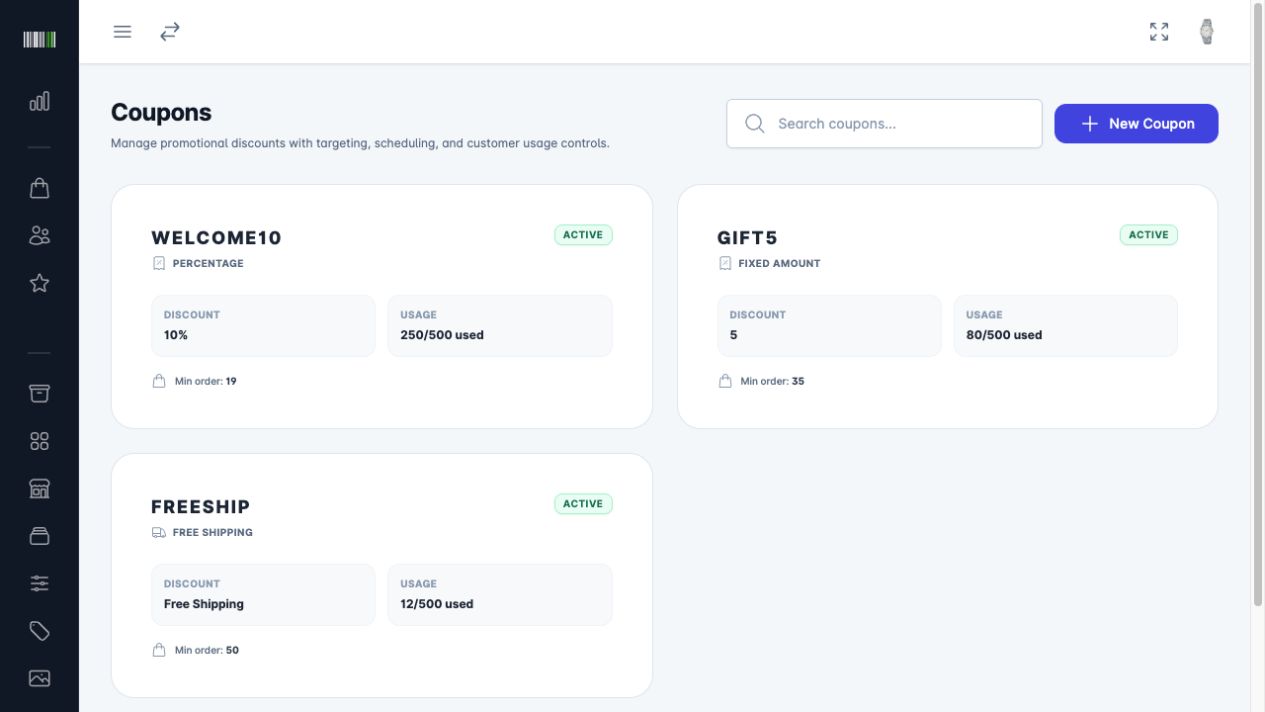
Coupons page in the TruBuy admin
Growth tools

Coupons

Create discount codes with clear rules so promotions never cost more than planned.

What you can do here

  • Percentage or fixed-amount discounts
  • Minimum order value, start and end dates
  • Total usage limit and a limit per customer
Navigation

A sidebar that follows the work

The admin menu is grouped the way teams actually work: monitor, manage, process and configure.

  • Grouped menus keep the number of choices small, so the right page is easy to find.
  • Lists have search and filters, so you rarely scroll to find a record.
  • Content can be translated per language from the same screens.
Modules
15
One shared database
Module groups
6
Organised by job
Workflow steps
5
From dashboard back to dashboard
Workspace
1
No switching between tools
Live demo ready

Ready to explore the system?

Open the demo and move through the same workflow shown on this page.